
AI Batch Prompt Generator turns one reusable prompt template into a complete batch of ready-to-use prompts using your own spreadsheet or CSV data. Fill in the template below, add a few rows of data, and generate dozens of finished prompts in seconds. Everything runs in your browser, so there’s no account, upload, or paid API required.
AI Batch Prompt Generator
Turn one reusable template into a complete batch of prompts using spreadsheet data or a CSV file.
Build your template
Add your data
Choose output settings
Your prompt batch
How to format variables and CSV files
Template variables: Wrap each changing value in double braces, such as {{topic}} or {{target audience}}.
CSV headers: The first row should use the same variable names. Header matching ignores capitalization, spaces, hyphens, and underscores.
Common mistake: A variable is left empty in a row. Fill it in, or turn off “Skip incomplete rows” to keep the placeholder visible.
Get more practical AI creator tips
Join the AIToolCritic list for new free tools, fixes, and step-by-step tutorials.
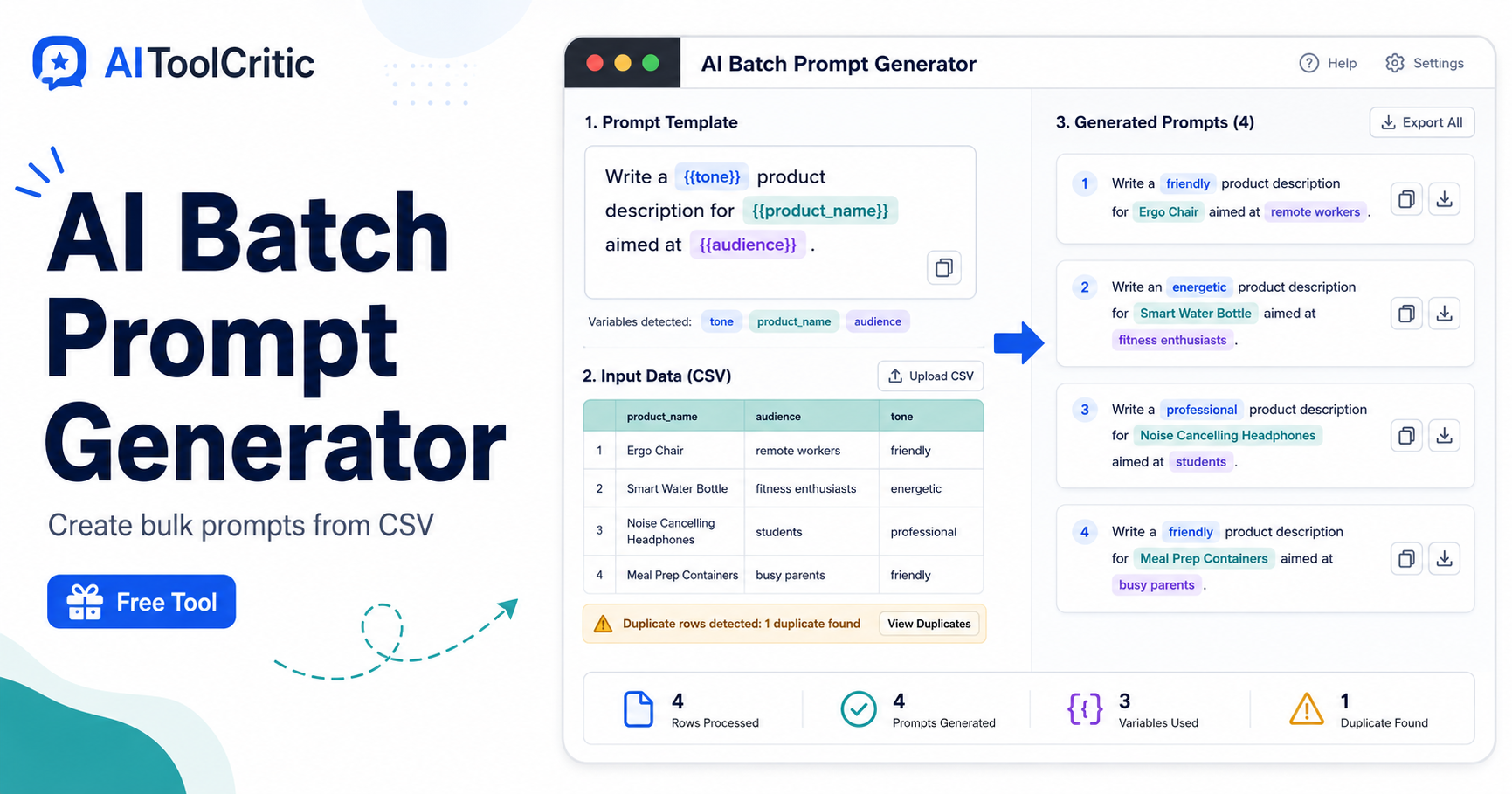
How the AI Batch Prompt Generator Works
The AI Batch Prompt Generator follows a simple three-step workflow that turns repetitive prompt writing into a one-time setup. First, write a single prompt template and mark the parts that change with double braces, such as {{topic}} or {{tone}}. Second, add your data as rows, either by typing them in directly or importing a CSV file exported from a spreadsheet. Third, choose formatting options like prompt separators and numbering, then click Generate Prompts to produce a complete, ready-to-copy batch.
- Build a reusable template with variables in double braces
- Add data rows manually, by pasting CSV, or by importing a file
- Generate, copy, or export every prompt in one click
Why Use an AI Batch Prompt Generator Instead of Writing Prompts by Hand
Writing prompts one at a time is slow and easy to make inconsistent. An AI batch prompt generator keeps wording, tone, and structure identical across every row while only the variables change, which matters when briefing a content team or feeding prompts into an automation workflow. Because this tool keeps data in the browser rather than sending it to a server, it’s also a practical choice for anyone who prefers not to upload spreadsheets to a third-party account.
If you already have a single prompt that needs sharpening before scaling it up, try running it through our Free Prompt Analyzer first. Once your template is solid, the Prompt Workflow Builder can help chain the generated prompts into a repeatable process.
Best Use Cases for Bulk Prompt Creation
Because the generator ships with starter templates, it’s built to handle the kinds of repetitive writing tasks that pile up across marketing and content teams:
- Blog post ideas and outlines for multiple topics or audiences
- Social media captions across several platforms and tones
- Product descriptions for entire catalog spreadsheets
- Image generation prompts for batches of creative concepts
Formatting Your CSV Data for Best Results
The generator accepts CSV headers in any order, but a few habits make batches easier to run. Keep one column per variable used in the template, wrap any value that contains a comma in quotation marks, and use the “Trim extra spaces” option to clean up values copied from spreadsheets. For a deeper reference on how fields, quoting, and line breaks should be handled, see the official CSV format specification.
Tips for Writing Better Prompt Templates
A good template is what makes an AI batch prompt generator worth using. Keep the fixed part of a prompt specific about format, length, and style, and reserve variables for the parts that genuinely change row to row, such as topic, audience, or tone. For more guidance on structuring instructions that get consistent results from language models, OpenAI’s prompt engineering guide covers techniques that apply directly to template design.
Frequently Asked Questions
Is the AI Batch Prompt Generator really free?
Yes. No account, subscription, or paid API connection is required to build templates, add data, and generate prompts.
Does my spreadsheet data get uploaded anywhere?
No. The template and CSV data are processed entirely in your browser and are never sent to a server.
Can I import a CSV file directly?
Yes. You can import a CSV file, paste CSV text, or add rows manually, and headers can be in any order.
What happens if a row is missing a variable?
Turn on “Skip incomplete rows” and the generator will flag rows with empty variables instead of producing an incomplete prompt.
Once a batch is generated, carry the output straight into our AI Custom Instructions Generator to build system-level instructions for the same project.
